Cast for Chromecast & TV Cast
- 3.9
- Rating
- 50.00M
- Installs
- Free
- Price
 Analysis by App-foxy
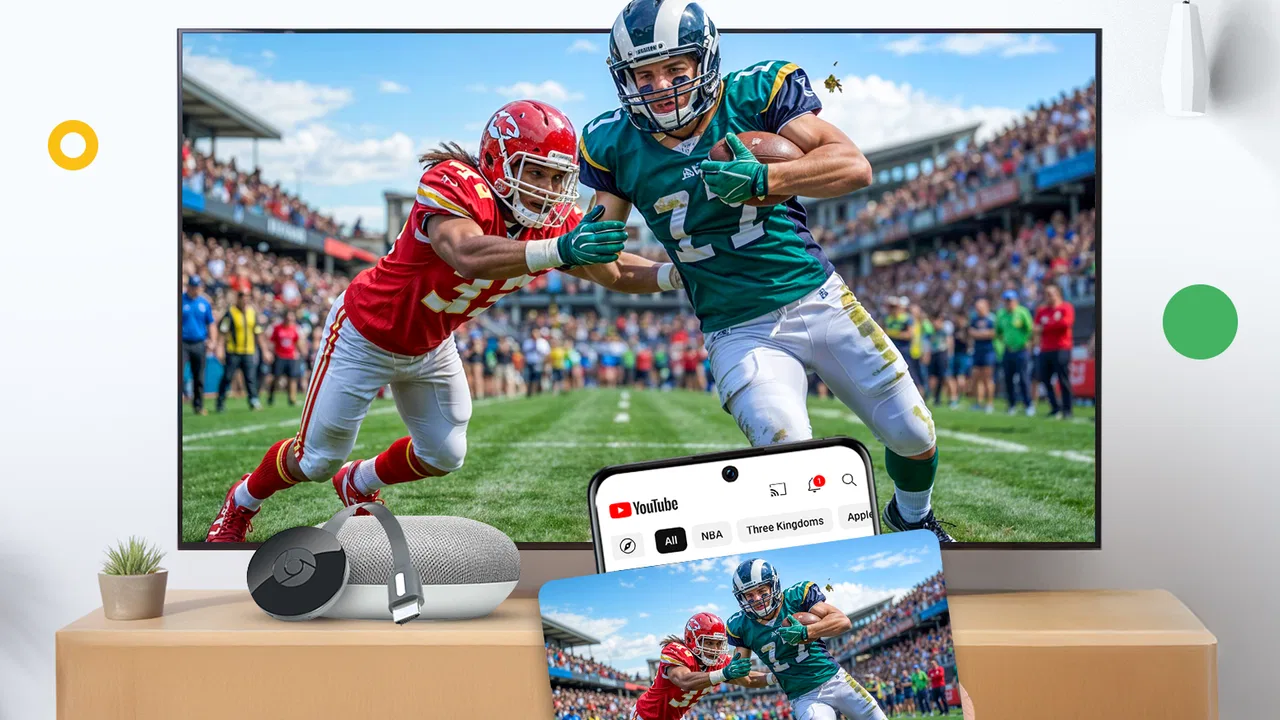
When I first opened Cast for Chromecast & TV Cast, I understood its appeal immediately: it is a free tools app built around getting videos, photos, and web content from a mobile device onto a television through Chromecast. That sounds simple, and the basic idea is simple, but the real value depends on how quickly it helps you move from installation to a successful cast without getting lost in settings or expecting it to do more than Chromecast allows.
In my experience, this app makes the most sense for someone who already owns a compatible Chromecast setup and wants a separate control point for casting. It can be handy when the television’s own apps feel awkward, when you want to show a group some photos, or when a web video is easier to find on a phone than through the TV interface. It is not a replacement for every streaming service’s official app, and that distinction matters before you download it.
What the app feels like in everyday use
The app comes from iKame Applications - Begamob Global and is listed in the tools category. Its store summary focuses on screen mirroring and remote control for Chromecast, along with casting videos, photos, and web content to a TV. I found that description useful as a starting point, but I would frame the experience more practically: this is a bridge between your phone and a Chromecast-connected screen, not a new entertainment library.
You May Also Like

 Blood Strike: 2.5 Anniversary
Blood Strike’s Loadouts Turn Every Drop Into a Tactical Gamble
A close look at Blood Strike’s custom loadouts: how fast access to signature weapons reshapes its battle royale rhythm, rewards preparation, and narrows the gap between fights.

 Pandora - Music & Podcasts
Pandora’s Music Is Easy to Start, but Harder to Recover
Pandora’s strength is its low-effort path from a seed to a station. Its weak spot is how much confidence it asks you to place in connection, setup, and quiet recovery.

 8 Ball Pool
 Is Built on Rivalries, Rematches, and Routine
A close look at the rivalries, rematches, shared routines, and unanswered safety questions that turn a quick pool match into a persistent mobile community.

 Samsung Music
’s Quiet Strength Is Playing What You Already Own
Its reach comes less from spectacle than from dependable access to a personal library. That simplicity is both the app’s strongest retention engine and its ceiling.

 AccuWeather: Weather Radar
AccuWeather Review: A Quick, Clear Forecast for Everyday Decisions
For everyday plans, the best forecast is the one you can understand quickly. AccuWeather makes rain timing, radar, and local conditions easy to act on, with a few trade-offs.

 Hill Climb Racing
Why Hill Climb Racing Still Turns Crashes Into One More Run
A tiny car, a bumpy hill and one more upgrade: Hill Climb Racing keeps resurfacing because its simple chaos makes every near-miss feel personal.
More From Our News Desk



The first thing to expect is a workflow based on discovery. The app needs to identify the casting target you want to use, and your phone and Chromecast arrangement need to cooperate before the app can send anything. If the target does not appear, repeatedly tapping the cast control usually will not solve the problem. Checking the television input, the Chromecast connection, and the network arrangement is a better first move.
That network detail is one of the less obvious parts of the experience. A phone can be online while still failing to communicate properly with a casting device if the two are separated by different network settings. In a home with several Wi-Fi names, guest access, or range extenders, this is often the first place I would look. The app can be useful, but it cannot remove the basic requirement that the phone and receiver must be able to see one another.
Once the connection works, the app is most approachable when I treat it as a remote starting point rather than a full replacement for the TV. I select the material I want, choose the available screen, and then let the television handle the viewing. This keeps the phone available for control while the larger display does the actual work.
The audience is broad enough to explain the app’s popularity. It has passed 50 million installs and holds a 3.9 average from around 970 thousand ratings, with roughly 6.5 thousand written reviews. Those figures suggest that many people are trying it for the same straightforward reason: they want a more convenient route from handheld content to a larger screen. They do not guarantee that it will work equally well with every phone, network, video source, or television.
Who will get the most from it
I would recommend trying it if you regularly browse content on an Android phone and often wish you could move it to a Chromecast-connected TV without searching for the same item again on the television. It also suits households where one person wants to control playback from a phone while others watch from the sofa.
Photo sharing is another sensible use. After a trip, a family gathering, or a small home project, displaying images on the TV is more comfortable than passing a phone around. The bigger screen also makes it easier for several people to see details that would be cramped on a handset.
On the other hand, I would skip it if your main goal is flawless playback from a particular subscription service and that service already has an official TV application. Official apps usually know their own content rules, playback methods, and account requirements better than a general casting tool. This app is more interesting when you need flexibility across personal media, web content, and simple casting tasks.
Setting it up without unnecessary frustration
The app is free to install, and it is rated for Everyone. It runs on Android 7.0 or later, so compatibility with an older phone is worth checking before you spend time troubleshooting. The current version is 4.1.9, which is useful context when comparing your experience with older advice or screenshots found elsewhere.
I would begin with the television already switched to the input used by Chromecast. Then I would open the app and give it a moment to look for available casting targets. If a device appears, selecting it should be the meaningful first checkpoint. Do not start by browsing every available option; first establish that the phone can reach the screen.
If nothing appears, I would work through a short practical sequence. Confirm that Chromecast has power, confirm that the TV is on the correct input, and check whether the phone is connected to the intended home network. If your router presents separate guest and main networks, place both devices on the same ordinary network for the initial test. This is not a special trick for the app; it is the basic communication path casting depends on.
Another useful habit is to test with a small, uncomplicated item first. A single photo is a better setup test than a long web video because it reduces the number of possible causes when something fails. If a photo reaches the television, you have proved that discovery and basic casting are working. You can then move on to video or browser-based material with a clearer idea of where a problem lies.
The app includes in-app purchases ranging from $2.99 to $43.99 per item. I would not assume that paying is necessary to complete the initial connection. First use the free experience to decide whether the app recognizes your setup and handles the content you actually care about. That approach prevents you from treating a purchase as a fix for a network or compatibility issue.
Getting to the first successful cast
For a first attempt, I would choose a photo stored on the phone or another simple piece of content that is easy to identify. Open the relevant casting function, select the intended Chromecast target, and watch the television rather than the phone. The success moment is not merely seeing a device name in the app; it is seeing the selected material appear on the larger screen.
After that first success, try a short web-based task if that is why you installed the app. Web casting can feel less predictable than sending a local photo because the page may contain advertising, changing media players, or a video format that does not behave like a normal file. If a page does not cast cleanly, I would not conclude that the whole app is broken. I would test a different page and compare the results.
This is where expectations make a big difference. A phone can display a web page perfectly while the TV receives a different playback request. Some web pages are designed for touch controls, some use embedded players, and some restrict how their content can be sent elsewhere. The app can provide the route, but it does not turn every web page into a Chromecast-ready television channel.
For videos, I prefer starting with something short and familiar. That makes it easier to notice whether the problem is connection, loading, controls, or the source itself. If the video starts but pauses frequently, I would check the network before blaming the app. If the video never starts while photos work, I would suspect the source or its playback method next.
One practical tip is to keep the phone awake during the first test. I use this only while confirming the connection, not as a permanent requirement. It helps me distinguish a failed cast from a phone that has simply changed state while I was waiting. Once the TV is clearly playing, I can return to normal phone use and see how reliably the session continues.
The phone also becomes a control surface, which is convenient but easy to misunderstand. Casting is not always the same as duplicating every pixel of the handset on the TV. Depending on what you send, the television may be receiving a playable item rather than a live copy of every tap and screen transition. If you need the TV to follow every movement through an app, a dedicated mirroring function or a native TV version may be a better fit.
Confusions that can make a working app seem broken
The most common confusion is assuming that finding a Chromecast target means every type of content will behave identically. In reality, a local photo, a web video, and a page with interactive elements can all produce different results. I treat them as separate tests instead of using one failed item to judge the entire app.
Another mistake is closing the phone app immediately after starting playback and assuming the session will always continue in exactly the same way. Casting is designed to let the phone act as a controller, but the details can vary according to the content source and connection. I keep the app available until playback is stable, especially during a first attempt.
It is also easy to confuse the TV’s input problem with an app problem. If Chromecast is active on another HDMI input, the app may report a successful connection while you are looking at a blank or unrelated screen. I always check the input before changing settings. This simple step saves more time than repeatedly reconnecting the phone.
There is a difference between a cast session and a conventional remote control. A casting app can help start and manage content, but it does not automatically give universal control over every television function. Volume, input switching, picture settings, and other TV-specific actions may still belong to the television remote or its own system. I would download this app for casting convenience, not as a promise of complete hardware control.
Permissions and system behavior can also affect the first run. If Android asks for access that relates to discovering nearby devices or selecting photos, I read the request in context rather than approving everything automatically. Access needed to choose personal images is different from access that would be unrelated to the task. Being deliberate here makes the setup feel safer and keeps the app’s purpose clear.
Playback quality deserves realistic expectations too. The larger screen does not improve a low-quality source, and a weak home network can turn a convenient cast into buffering or delayed controls. If the same material plays smoothly on the phone but struggles on the TV, I would test the distance and stability of the Wi-Fi path before deciding that a paid option will solve it.
How it compares with the usual alternatives
The closest alternative is often the official Cast button inside a streaming service. That route is usually better when I am watching content from one major platform because it avoids an extra layer and is built around that service’s own playback system. The advantage of this app is breadth of purpose: it can be a single place to try personal photos, web material, and other content instead of opening a different official app for every task.
Phone manufacturers may also include their own screen-sharing tools. Those can be preferable when the goal is to mirror the entire handset, including an app that does not offer a cast-friendly player. However, manufacturer tools may be tied to a particular brand or television ecosystem. This app is more appealing when Chromecast is the center of your setup and you want a focused casting workflow rather than a general device-to-device sharing suite.
A browser’s built-in casting option can be quicker for one web page, while the TV’s native applications are usually the cleanest solution for regular viewing. I see this app occupying the middle ground: more flexible than relying on one native app, but less guaranteed than using an official player designed for the exact service.
That trade-off is important for privacy and reliability decisions. If I am showing private photos to family, I prefer selecting only the images I intend to display and ending the session when finished. If I am watching a service with account-sensitive content, I prefer its official application when available. The best choice changes with the material, not just with the television.
Useful habits after the first success
Once casting works, I would create a simple routine instead of exploring every feature at once. First, test a photo. Next, test a video source you use regularly. Finally, try a web page if web casting is important to you. This three-step progression gives a practical picture of what the app can do in your home, rather than relying on a generic promise.
For group viewing, prepare the content before handing the phone around. Open the photo or page, connect to the correct screen, and then invite others to watch. This reduces the chance that someone accidentally selects a different target or navigates away from the material. It also makes the app feel like a small presentation tool rather than a technical demonstration.
For personal use, I would keep the phone charged when starting longer sessions and avoid treating it as the only source of truth. If the TV stops responding, look at both devices: the phone may show a disconnected state while the television is still displaying the last frame. Ending the session cleanly and reconnecting is often more sensible than repeatedly pressing play.
Because the app offers purchases, I would revisit the upgrade decision only after identifying a real limitation in my own routine. If the free version already finds the TV and handles the content I want, paying may add little value for me. If a paid feature addresses a specific annoyance, I would judge it against the cost rather than assuming every user needs it.
Updates can matter with casting apps because phones, routers, Chromecast devices, and web players all change over time. Keeping the app current is sensible, but I would also avoid updating in the middle of an important presentation unless I have time to test again. A reliable setup is more valuable than a last-minute change before guests arrive.
There is also a useful boundary for work and school. I would not rely on this app as the only presentation method for a critical meeting without testing the exact slides, media, network, and television beforehand. For casual sharing it can be convenient; for a high-stakes presentation, a wired connection or a dedicated presentation setup may be safer.
My recommendation for a first-time user
My overall view is positive but specific. This is a practical free casting tool for people who already have Chromecast and want an easier path from phone content to a TV. Its best moments come from removing a small everyday annoyance: finding a photo, web video, or other content on the phone and moving it to the screen without rebuilding the whole experience on the television.
I would install it with modest expectations, confirm the device connection using a photo, and then test the exact video or web source I care about. That order is more reassuring than beginning with a difficult page and wondering whether the app, the network, or the content is responsible. It also gives a first-time user a clear route to a meaningful success.
The app is less convincing if you only watch services that already provide excellent official TV apps, or if you need perfect full-screen mirroring of every phone action. In those cases, the native option or a manufacturer’s mirroring tool may be simpler. It is also not the right answer to a weak Wi-Fi connection, an incompatible source, or a television input that is set incorrectly.
Still, I can see why it has attracted a large audience. The developer has kept the central idea easy to understand, and the app’s tools category placement fits what it does: it helps connect everyday phone content with a Chromecast viewing setup. For someone asking me whether to try it, my answer would be yes, provided Chromecast is already part of the home and the goal is flexible casting rather than a complete replacement for official TV apps.
Start with one photo, confirm the correct screen, and only then move to video and web content. That small progression captures the app’s real strength and its main limitation at the same time: it can make casting feel straightforward, but the final result still depends on the receiver, the network, and the source you choose. For casual home sharing and quick phone-to-TV control, that is a worthwhile trade-off.
FAQs for Cast for Chromecast & TV Cast
01What is Cast for Chromecast & TV Cast and how does it work?
Cast for Chromecast & TV Cast is an app designed to stream videos, music, and photos from your smartphone to your Chromecast-enabled TV. It works by connecting your device and Chromecast to the same Wi-Fi network, allowing seamless casting of content from various sources such as YouTube, Netflix, and local media files.
02Is Cast for Chromecast & TV Cast compatible with all devices?
The app is compatible with most Android and iOS devices. However, users must ensure their device supports screen mirroring and is connected to the same Wi-Fi network as the Chromecast. Some older devices may not support all features, so checking compatibility before downloading is recommended.
03Are there any additional costs associated with using Cast for Chromecast & TV Cast?
While the app offers a free version, it may include ads and limited features. To access premium features like HD streaming and ad-free experience, users might need to purchase a subscription or a one-time upgrade. It's advisable to review the pricing details within the app before upgrading.
04How can I troubleshoot connection issues with Cast for Chromecast & TV Cast?
If you encounter connection problems, first ensure both your device and Chromecast are on the same Wi-Fi network. Restarting the app, your device, and the Chromecast can often resolve connectivity issues. Additionally, checking for updates to the app and firmware might help improve performance.
05Can I cast content from apps other than YouTube and Netflix using Cast for Chromecast & TV Cast?
Yes, the app supports casting from a variety of sources, including local media files and other streaming services. However, the availability of specific apps might depend on regional restrictions and the app's compatibility. Exploring the app’s supported services section can provide more information about your options.
Pros
- Easy setup with quick casting.
- Supports a wide range of video formats.
- No lag during streaming sessions.
- User-friendly interface design.
- Compatible with multiple devices.
Cons
- Occasional connectivity drops.
- Limited free version features.
- Ads can be intrusive at times.
- Requires strong Wi-Fi for HD streaming.
- Not all apps support casting.

Cast for Chromecast & TV Cast
Gallery